
How to create a Resume Website with Claude Code
Why a resume website?
A resume website is an easy way to stand out and send to any prospective employer via email, DM, or bio. Give yourself atleast an hour to setup the initial pieces. And it will be effortless to maintain in the future. We will be using 3 tools, thats it:
- A terminal
- Claude Code installed on the terminal
- Github
Step 1 - Setup your terminal
(skip this section if you know what a terminal is and how to use it)
The Terminal is the most basic way to navigate files and communicate with your computer, using the Command Line Interface (CLI):
Open up the Terminal app on mac, you will land on a screen like this.
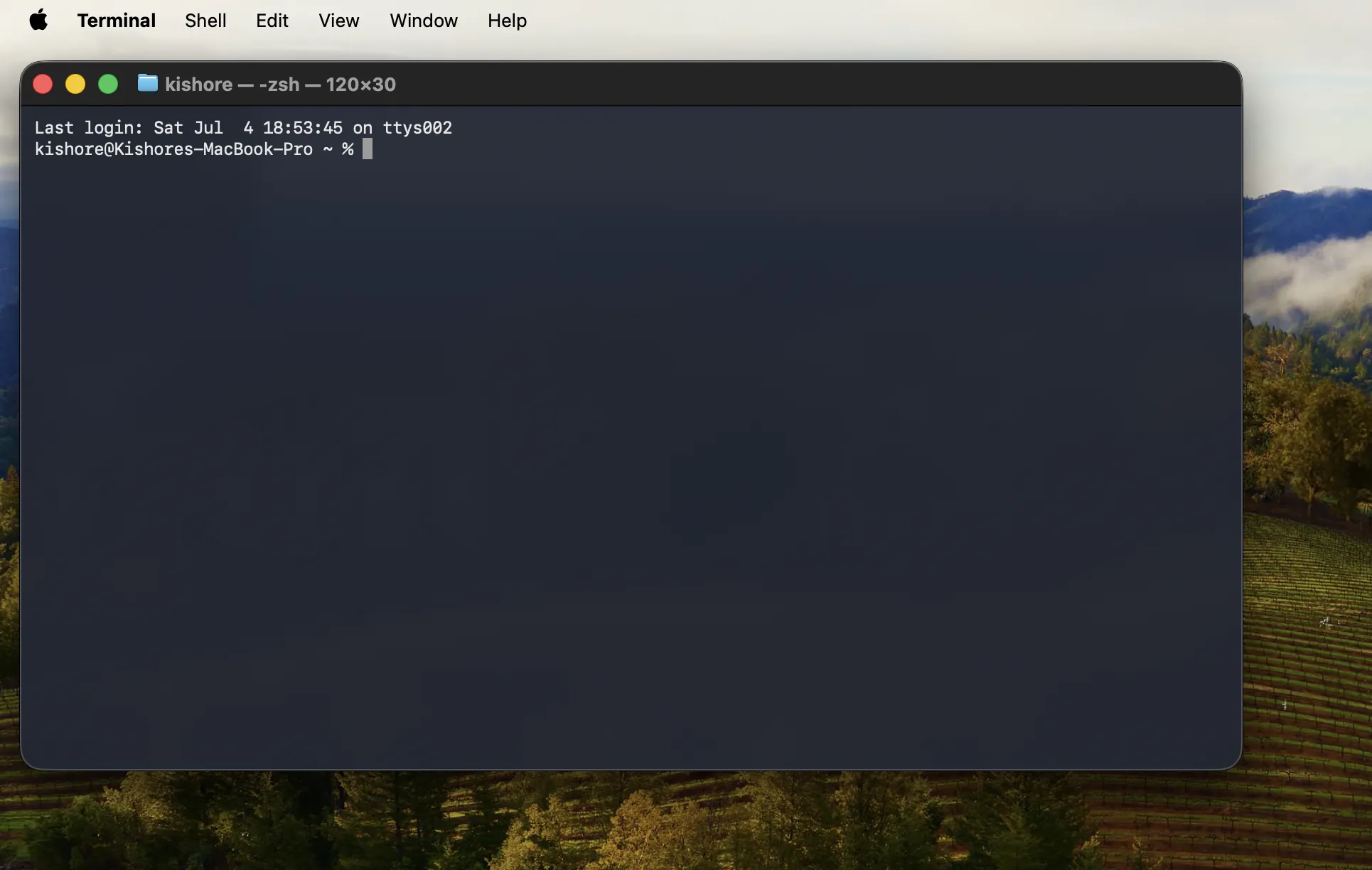
You’re notice the image above shows kishore@Kishores-MacBook-Pro ~ %. Breakdown of the different terms here:
kishore: The name of the currently logged in user on the computerKishores-MacBook-Pro: The name of the computer~: Shorthand for your “home” folder. Terminal always default opens to this%: The prompt symbol. Anything you type goes after it
The terminal always opens you on the home directory (directory is just another name for folder). You can now start to type in commands into the terminal, to navigate and interact with the computer. The following commands a few of the most basic ones you will use:
ls: List. Prints out all the files in a folderpwd: Present working directory. Gives you the path of the current directory you are incd: Change directory. Type this plus the name of the directory you want to move intomkdirMake directory. Type this plus the name of the directory you want to create
To create our resume website we will first create a new directory, to hold the files for your new website.
Step 2 - Create your Resume Website’s Directory
Type in the following command into the terminal (everything after the % character), to create the folder for your resume website:
% mkdir resume-website
Then move into the folder you just created
% cd resume-website
Step 3 - Install Claude Code in the Terminal
Visit https://code.claude.com/docs/en/quickstart, and type in the install commands for your Operating system. For example, for MacOS at the time of this writing, the command is:
% curl -fsSL https://claude.ai/install.sh | bash
Step 4 - Start Claude
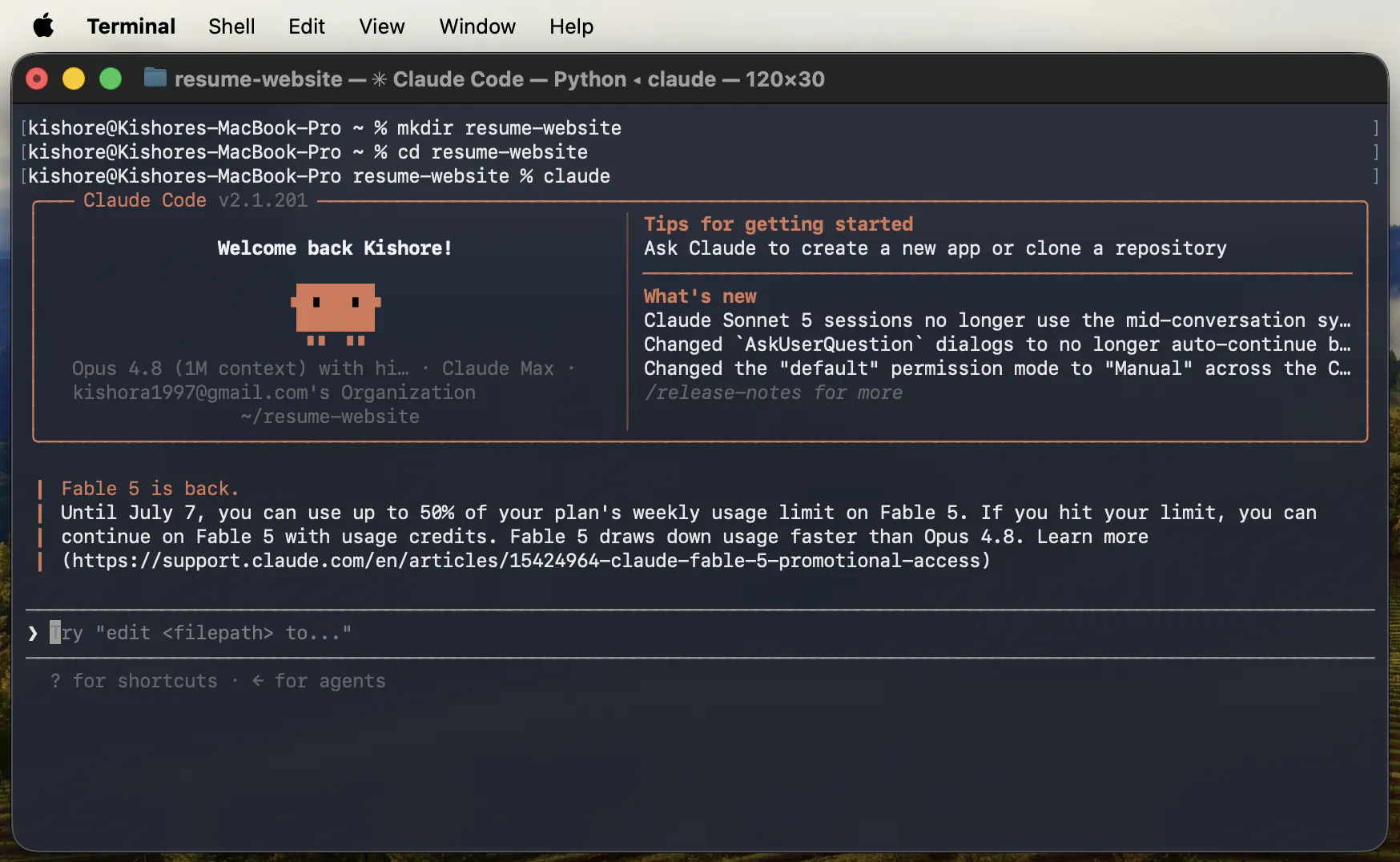
To start up claude, simply type
% claude
This will prompt you to open the browser and login to your anthropic account to athorize. Once completed you should see claude code get launched.
Step 4 - Setup your Github
Congrats, you got an AI coding setup! But before we ask Claude to do anything, we will go setup your Github. Github as a place where people can store their code, but it also provides basic hosting.
Firstly, visit https://github.com/ and setup an account. Then you can give claude code the following prompt:
Install git and authenticate github for me
^Notice the orange background for this prompt, this you have to type into claude code, and NOT directly in the terminal. Claude will install the tools necessary to push the changes necessary into github.
It will also ask you to login to the browser and authenticate your github, so your computer will be linked to your github.
Step 5 - Create your Website
We’re at the point where you can create your website now, finally! It’s preferable to have an existing copy of your PDF resume at this point. You can literally drag and drop your resume into claude code witht the follow prompt:
I am providing my resume, please turn it into a simple, professional website inside a single self-contained html file. Once finished, push this whole directory to a new
github repo and ensure it can be deployed to github pages, at the domain kishore-adimulam.github.io
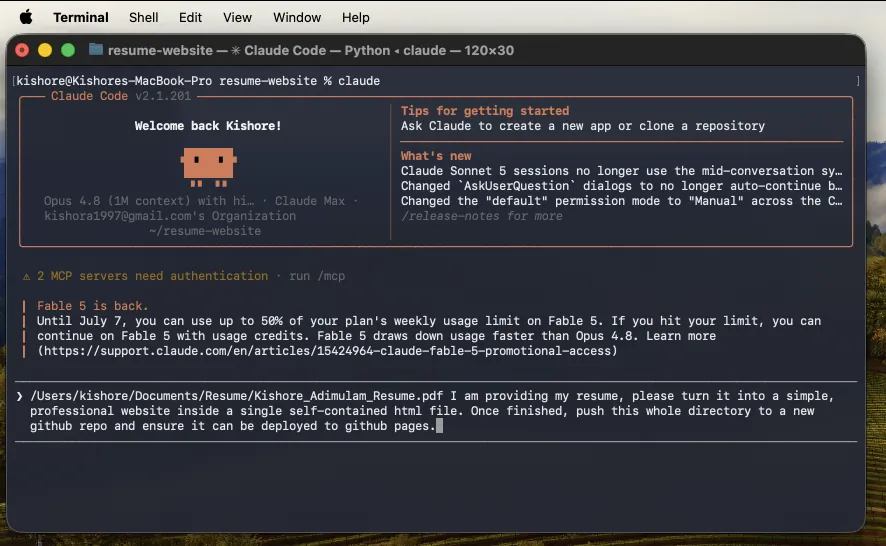
Claude code will churn for a bit, create your website, and deploy it to github.
That’s it! Your resume should now be at kishore-adimulam.github.io, or whatever url you provided in the previous prompt.
Step 6 - Changing your Website in the Future
Ok you love your site. Several months pass and you want to make some updates, now what? The process luckily is much simpler
*1. Move into the folder where your resume site is
Open the terminal and run cd resume-website, or whatever the name of the folder you created was.
2. Start Claude code
Run claude
3. Ask Claude to make changes
Please add the new job I got at the top of the site, and explain all the cool stuff I did at it
4. Ask Claude to Deploy the changes
Please push all the changes to github
Final Thoughts - Customizing your Site
Now that your website is up, you can start customizing. This is as easy as conversing with claude code, and treating it as your personal assistant to change any aspect of the code. Ask yourself some questions to brainstorm ideas of what to change:
- What do the websites of other professionals in my field look like?
- What other websites do I like? What ideas from them do I like?
- What is the real goal of this site? To get a job, just for fun, or something else?