
You need this Coding Agent setup on Windows
If you are running coding agents on Windows, it is time to move off PowerShell. WezTerm + Herdr is a lethal combination that is faster, better looking, and much more productive.
Step 1. Install
Download and run the Windows installer.
Step 2. Paste this into your coding agent
Install this WezTerm config on my machine: https://github.com/kunchenguid/dotfiles/blob/main/home/.config/wezterm/wezterm.lua Fetch the file, then save it as wezterm.lua in my home directory (on Windows that is %USERPROFILE%\wezterm.lua). If a wezterm.lua already exists there, back it up first. When done, tell me to reload WezTerm to apply it.
That config, from kunchen’s dotfiles, is a single wezterm.lua file that lives on your machine, which defines how your terminal looks and acts. You can ask Claude to list and modify any styles you don’t like (background opacity, font size, etc.)
Step 3. Add herdr
Paste this into your coding agent:
Install herdr on my Windows machine by following the official install docs at https://herdr.dev/docs/install/ (use the PowerShell instructions). Fetch the docs, run the install, confirm herdr is on my PATH, then apply this config: https://github.com/kunchenguid/dotfiles/blob/main/home/.config/herdr/config.toml Fetch that file and save it to herdr’s config location, backing up any existing config first. When done, tell me the command to launch herdr.
Herdr turns WezTerm into a terminal designed for agents. Once it is installed, quit WezTerm to restart, and run the herdr command.
That’s it! Now you can try the different actions in herdr to run one or more Claudes:
- Open different tabs (using the + button in the top bar)
- Navigate to the directory you want in each tab, and run claude
- See the status of each Claude in the sidebar
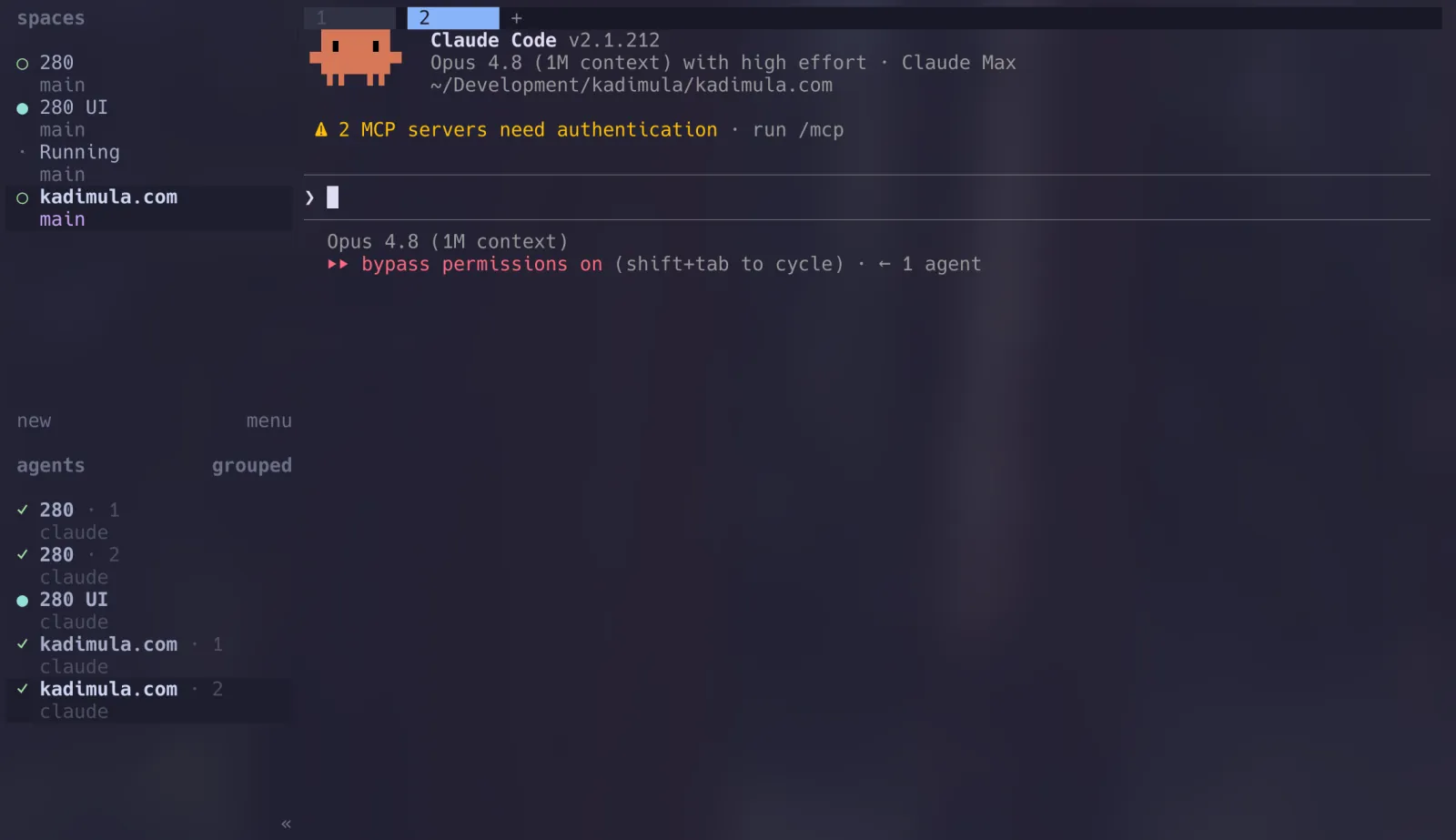
herdr managing several Claude Code agents at once, grouped by project in the sidebar.